
Do the pre-check early
Install Examo and run the pre-check a day or two before. If something doesn't work, you'll have time to get help.
Your college or university uses Examo to supervise some of its exams. Here is what to expect, how to get ready, and what happens to your recordings.
Step by step
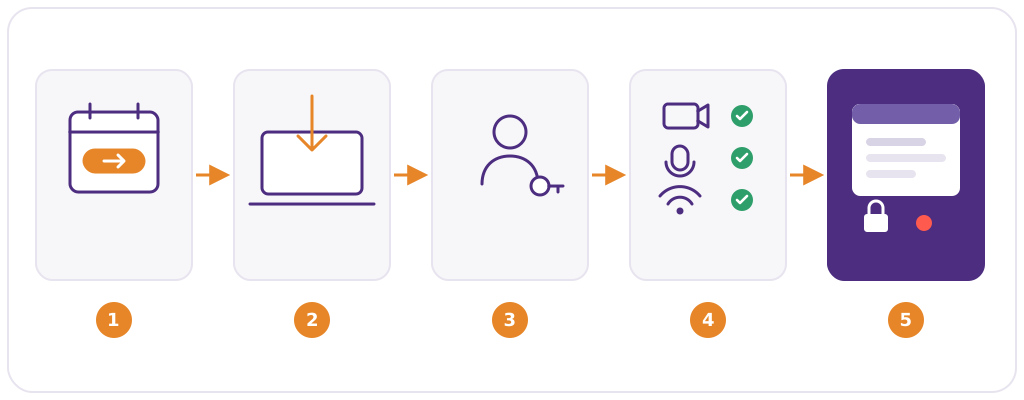
You'll find a "Take the exam" link in the exam's event in your Outlook calendar. Your teacher may also share it in Teams or Moodle.
If Examo isn't installed yet, the link installs it. It works on Windows 10 and 11 and on current macOS versions, and doesn't need administrator rights.
Use the Microsoft 365 account your institution gave you. There is no new account to create.
Examo checks your camera, microphone and connection if your exam uses them. Do it ahead of time so exam day starts on time. A proctor may confirm your identity and your attendance before the exam starts.
The exam opens in Examo, in a Moodle quiz, a Word, Excel or PDF document, or the exam application your teacher chose. When you're done, submit it as instructed.
Before exam day
Install Examo and run the pre-check a day or two before. If something doesn't work, you'll have time to get help.
Your teacher decides what is allowed: a calculator, a document, specific websites. Anything not allowed will be blocked during the exam.
Quit messaging apps, browsers and other programs before you start, so the exam opens cleanly.
Your computer
| Computer | Windows 10 or 11, or a Mac running a macOS version Apple still supports. Your own computer or a campus workstation. |
|---|---|
| Installation | Done by the exam link. No administrator rights needed. |
| Camera and microphone | Only if your exam records them. Your teacher will tell you. |
| Internet | A regular connection is enough. You don't need high-speed internet the whole time. |
| Account | Your institution's Microsoft 365 account. |
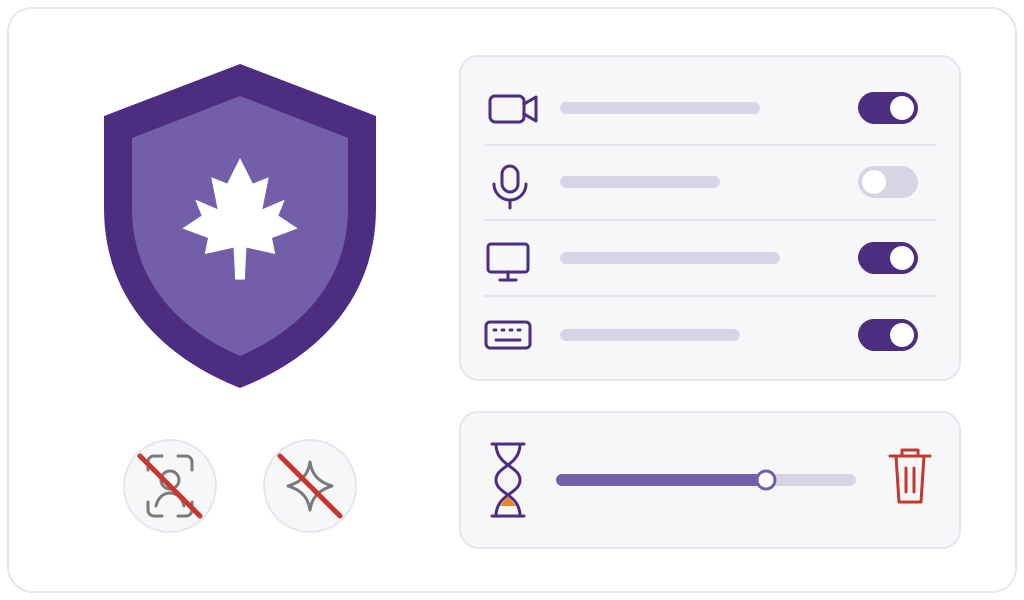
Your privacy
If something goes wrong
For questions about your exam, its rules or your accommodations, contact your teacher or your institution. For a technical problem with Examo, your institution's help desk can reach our support team.