Student
Opens the exam link, signs in with Microsoft 365, passes the pre-check and takes the exam on their own computer or a campus workstation.
Six steps from your student information system to a report you can file. Teachers prepare and launch their exams on their own; nobody has to watch a dashboard all afternoon.
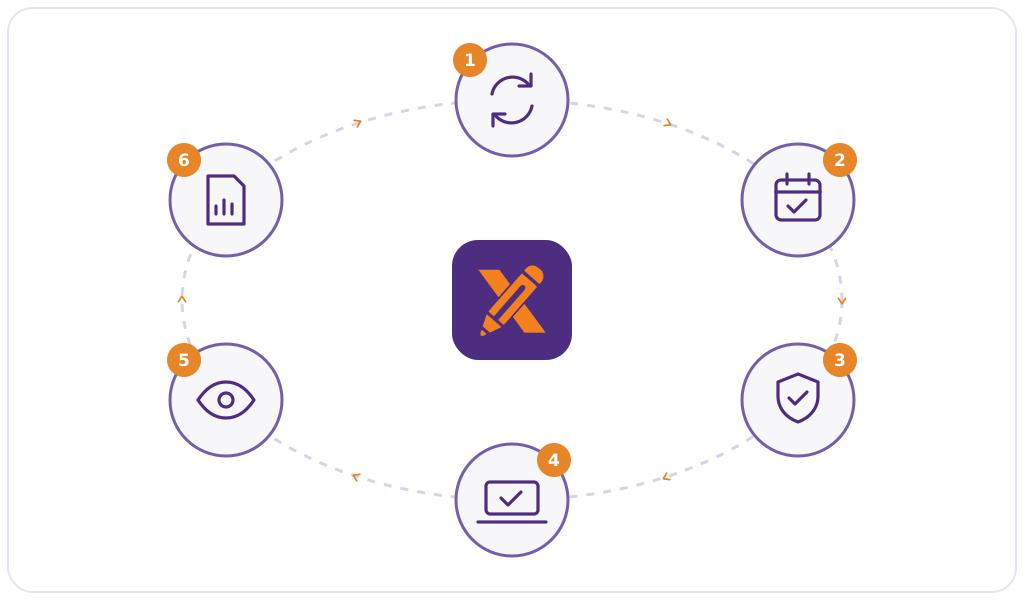
The exam cycle
Examo frames the exam rather than replacing the tool it was written in. The teacher picks the content, Examo applies the rules, records the session and hands the evidence back to a person.
Step by step
Exams, groups and students are synchronized automatically from your SIS or ERP. Teachers start from the right class list, and late enrolments follow on their own.
The teacher chooses where the exam lives: a Moodle quiz or exam, a Word, Excel or PDF document uploaded to the Examo app, or the URL of an external exam application. Then they set the access window, the duration and a buffer period that absorbs technical hiccups. Students receive a "Take the exam" link in their Outlook calendar event.
Ready-to-use security profiles, rules set centrally by the institution and reusable templates decide what is recorded, what is blocked and which resources are permitted. Accommodations are added per student: extra time, breaks, special conditions and authorized tools.
Before the exam, each workstation and each student is validated: camera, microphone and connection are tested, and the student signs in with their Microsoft 365 account. On exam day, the proctor or teacher confirms attendance in a waiting room before launching.
The teacher or proctor launches the exam and follows attendance, sessions and incidents on one screen, with live camera and screen views when needed. If a student loses their connection, the exam and its recording carry on locally and synchronize when the connection returns. The proctor can extend a student's time.
After the exam, a tracking board shows each exam's status, each student's session, the submitted document and the recordings. Incidents sit on a timestamped timeline with the matching recording; the teacher reviews them and decides. Events and alerts export to Excel.
Roles
Access rights are set per role, and recordings are visible only to the teachers and administrators your institution authorizes.
Opens the exam link, signs in with Microsoft 365, passes the pre-check and takes the exam on their own computer or a campus workstation.
Builds the exam in their usual tool, schedules it, applies a security profile and reviews incidents afterwards.
Validates attendance and identity, watches live streams, assists students and extends time when needed.
Sets institutional rules and security profiles, manages roles and access, and controls retention and exports.
Support
Upload the document or link the Moodle quiz, pick the settings and the security profile, add accommodations. No ticket to IT.
The LS2 team can integrate an exam on a teacher's behalf, using the bank of support hours included in the licence or an additional one.
Online sessions for teachers, proctors and administrators, backed by written guides. Support by email and Teams, Monday to Friday, 9 a.m. to 5 p.m. Eastern.
In a 30-minute demo we create an exam, run a proctored session, handle an incident and open the report.
Book a Demo